8 Best Cricut for Teachers (October 2026)
The best Cricut and die cutting machines for teachers include the Cricut Explore 5 Essential for classroom variety, the Cricut Maker 4 for advanced class projects, and the Sizzix Big Shot Starter Kit for shared paper activities.
On this page (12 sections)
- Which Cricut is best for teachers with varied classroom projects?
- Which Cricut should teachers choose for a classroom with mixed projects?
- Is Cricut Maker 4 the best Cricut for teachers using varied materials?
- Which manual die cutter works for shared classroom paper activities?
- Is Cricut Joy 2 a good fit for teacher labels and cards?
- When should teachers choose Spellbinders Platinum 6?
- Is Silhouette Portrait 4 the best Cricut alternative for teachers?
- Which portable manual cutter suits a small classroom station?
- Does a classroom need the wider Sizzix Big Shot Plus?
- How should teachers choose the best Cricut for teachers and classroom use?
- What should teachers prepare before a cutting lesson?
- Which cutting machine should teachers pick?
The Cricut Explore 5 Essential is the best Cricut for teachers who need one digital machine for labels, cards, apparel, stickers and classroom decorations. It offers a useful balance of cutting width, material choice and included supplies, while the other picks suit more focused classroom routines.
Teachers often need more than one kind of craft activity across a school year. Before choosing a machine, list the projects students will make most often, then match the machine to their size, materials and workflow.
A digital cutter turns designs made on a computer, phone or tablet into cut, drawn or scored shapes. A manual die cutter presses a physical die through paper or other compatible material, which can make a simple shared activity easier to organize.
If you're still comparing machine types, our craft cutting machine guide explains the main differences. For more digital options, see electronic die cutting machines for paper crafts and manual die cutting machines.
Our picks at a glance
-
1

-
2

-
3

Which Cricut is best for teachers with varied classroom projects?
The Explore 5 Essential is the best all-purpose Cricut for teachers who switch between labels, cards, apparel, stickers and decorations. Its 12 in cutting width and support for more than 100 materials give a classroom room to try different project types without starting with the most specialized model.
We compared each machine's stated functions, compatible materials, included supplies and operating style against common teacher projects. Digital machines suit custom designs and repeated cuts, while manual machines work from compatible dies and embossing folders.
A class that makes custom labels and apparel may need a different tool from one that primarily cuts the same paper shapes. Think about the number of students, the time available for each activity and how much setup the teacher can handle.
| Product | Best for | Cutting width | Materials | Workflow | Our score |
|---|---|---|---|---|---|
| Cricut Explore 5 Essential | classroom variety | 12 in | 100+ | Bluetooth with Design Space app | 8.9 |
| Cricut Maker 4 | advanced class projects | 300+ | Design Space app; Print-Then-Cut with most inkjet printers | 8.7 | |
| Sizzix Big Shot Starter Kit | shared paper activities | 8.5 | |||
| Cricut Joy 2 Essential | quick labels and cards | 4.5 in | 75+ | 8.3 | |
| Spellbinders Platinum 6 | detailed die-cut cards | 8.0 | |||
| Silhouette Portrait 4 | smaller digital designs | 8.0 | |||
| Sizzix Sidekick Starter Kit | small die-cut stations | 7.9 | |||
| Sizzix Big Shot Plus Starter Kit | wider manual projects | 7.9 |
Which Cricut should teachers choose for a classroom with mixed projects?
Choose the Explore 5 if you want one digital cutter for a range of classroom projects. It covers common materials and design tasks while the Essential Bundle supplies give teachers a starting assortment for trying different activities.
Cricut Explore 5 Essential: Best for classroom variety
- 12 in cutting width
- Works with 100+ materials
- Cuts, draws, foils and scores
- Essential Bundle supplies for up to 65 projects
The 12 in cutting width and support for more than 100 materials fit a mix of classroom projects, including decals, apparel, stickers and cards. The Essential Bundle includes tools, materials and supplies for up to 65 projects.
Pros
- Wide range of project types
- Bundle includes several materials
- Works with computers and mobile devices
Cons
- Requires a compatible device, Bluetooth and high-speed internet
- Some tools and content require separate purchases or a subscription
Explore 5 works with vinyl, iron-on, cardstock and printable materials. It can also write, draw, foil and score, so a teacher can prepare labels, cards, apparel designs and other classroom pieces through one digital workflow.
The Essential Bundle includes Smart Vinyl, Smart Iron-On, value cardstock, insert card sets and printable vinyl. Cricut says those supplies are enough for up to 65 projects, and the bundle also includes digital images and a font.
Design Space is Cricut's free app, and the machine connects to a compatible computer or mobile device through Bluetooth. It also requires high-speed internet, so make sure the classroom has access to a suitable device and connection before building a lesson around it.
For classroom use, prepare a design with a clear size and material plan before students arrive. This helps reduce time spent choosing shapes or changing settings while the class is waiting.
Choose Explore 5 if you need repeatable designs across several material types. If you're comparing different cutter formats, see which cutting machine is best.
Is Cricut Maker 4 the best Cricut for teachers using varied materials?
Maker 4 is a strong fit for teachers whose planned projects call for more materials and functions than routine paper cutting. It supports more than 300 materials and can cut, draw, foil, score, engrave and deboss.
Cricut Maker 4: Best for advanced class projects
- Works with 300+ materials
- Cuts, draws, foils, scores, engraves and debosses
- Print-Then-Cut works with most inkjet printers
- Bundle includes a materials sampler
The Maker 4 supports more materials and functions than a basic classroom cutter, including engraving and debossing. Its bundle includes a sampler of vinyl, iron-on, cardstock and other materials.
Pros
- Broad material range
- Several functions for varied projects
- Includes a materials sampler
Cons
- May be more capability than a class needs for paper and labels
- Requires the Design Space app
The machine can work with cardstock, vinyl, iron-on, stickers, leather and wood. Its Print-Then-Cut feature works with most inkjet printers, which can help teachers prepare full-color designs for stickers and other projects.
The bundle includes a fine-point blade, pen, light-grip mat, weeder and a sampler of materials such as vinyl, iron-on transfer tape and cardstock. It also comes with 30 bonus images in Design Space.
Those extra capabilities are useful when the class has a clear plan for them. If lessons mainly involve paper shapes and basic labels, Explore 5 or a manual cutter will be simpler to match to the task.
Teachers should also decide which operations are appropriate for the students and classroom. Plan adult supervision for tools and materials that require closer handling, and start with a small project before using a new material for a full class activity.
Choose Maker 4 if your lessons will use its broader material and tool range. Skip it if the class mainly needs uncomplicated paper cuts.
Which manual die cutter works for shared classroom paper activities?
The Sizzix Big Shot Starter Kit is a useful manual pick for paper activities built around physical dies and embossing. Its 6 in opening and included Thinlits dies give teachers a ready-made starting point for shapes, cards and scrapbooking projects.
Sizzix Big Shot Starter Kit: Best for shared paper activities
- Manual die cutting and embossing
- 6 in opening
- Includes 73 Thinlits dies
- Clip-on handle stores under the machine
This manual machine pairs die cutting and embossing with an included set of 73 Thinlits dies. A 6 in opening suits many paper projects, while the manual crank lets students take part in using compatible dies.
Pros
- Includes dies, an embossing folder and cardstock
- No app or computer workflow
- Handle stores underneath
Cons
- A teacher or student must turn the handle for each pass
- Projects depend on compatible dies and the 6 in opening
The starter kit includes a multipurpose platform, a pair of cutting pads, an embossing folder and assorted cardstock. This helps teachers begin with a set of materials and accessories that fit the machine's manual workflow.
Students can take part by placing compatible dies and paper in the sandwich and turning the handle with adult guidance. A teacher can also prepare the die and paper arrangement first, then have students take turns with the crank.
The manual process makes repeated shapes straightforward, but every pass takes time and someone has to turn the handle. Keep the class activity focused on a manageable number of shapes, and check that each die fits within the 6 in opening.
For the basic plate arrangement, read how to use a Sizzix Big Shot.
Is Cricut Joy 2 a good fit for teacher labels and cards?
Joy 2 suits teachers who mostly make smaller labels, simple decals, cards and stickers. Its compact size makes it easier to store or move between work areas than a full-size cutter, while the Essential Bundle offers materials for up to 35 projects.
Cricut Joy 2 Essential: Best for quick labels and cards

- 4.5 in cutting width
- Works with 75+ materials
- Writes, draws, foils and scores
- Essential Bundle supplies for up to 35 projects
Joy 2 is a compact option for smaller classroom jobs such as labels, simple decals and cards. Its Essential Bundle includes materials for up to 35 projects, and the machine works with a phone, tablet or computer.
Pros
- Compact and portable
- Supports cards, labels and stickers
- Bundle includes materials and digital content
Cons
- 4.5 in cutting width limits project scale
- Requires a compatible device, Bluetooth and high-speed internet
The 4.5 in cutting width is the main planning limit. It can be a practical choice for classroom jobs such as name labels, small signs and card details, but it won't suit teachers who regularly need broad designs.
Joy 2 works with more than 75 materials and can write, draw, foil, score and cut. It also works with a home inkjet printer for full-color stickers, and the bundle includes Smart Vinyl, Smart Iron-On, cardstock, insert card sets and printable vinyl.
The machine connects to Design Space from a compatible phone, tablet or computer through Bluetooth and needs high-speed internet. Prepare and save the class design ahead of time, and confirm the classroom device is ready before the activity begins.
Pick Joy 2 for smaller repeat projects and tight storage. Choose a wider cutter if students will make larger signs, apparel designs or decorations.
When should teachers choose Spellbinders Platinum 6?
Spellbinders Platinum 6 fits teachers who want a manual machine for detailed card and scrapbooking projects. It includes a Universal Plate System, an embossing folder and a die set, so its workflow centers on physical plates, dies and paper rather than design software.
Spellbinders Platinum 6: Best for detailed die-cut cards
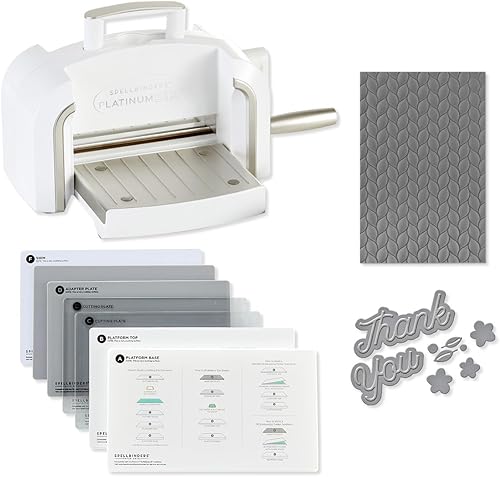
- 6 in platform
- Manual die cutting and embossing
- Universal Plate System
- Includes an embossing folder and die set
The Platinum 6 is a manual option for card and scrapbooking projects built around dies and embossing. Its Universal Plate System is designed to work with a wide range of products.
Pros
- Combines die cutting and embossing
- Includes a Universal Plate System
- Portable format
Cons
- Projects rely on dies and plate setups
- Manual operation needs a person for each pass
Its 6 in platform can suit a station where students make die-cut shapes or embossed paper details. The Universal Plate System is designed to work with a wide range of products, and the machine is also compatible with Spellbinders BetterPress Letterpress and Glimmer Hot Foil systems.
Those additional systems are only relevant if the class has a specific plan for them. For basic die-cut shapes, start with the included pieces and the paper materials the teacher intends to use.
A manual machine requires a person to turn the handle for each pass. It works well for a small-group station, but a teacher should consider how many students need to complete a project and how many machines or turns the lesson will require.
Choose Platinum 6 for card and embossing activities with a die-based workflow. Skip it if your priority is creating flexible digital designs or cutting larger projects.
Is Silhouette Portrait 4 the best Cricut alternative for teachers?
Silhouette Portrait 4 is a 9 in digital cutter for teachers who want a desktop design workflow and more width than Joy 2 offers. It includes Studio software and PixScan, and it can cut and sketch with electric tool options.
Silhouette Portrait 4: Best for smaller digital designs
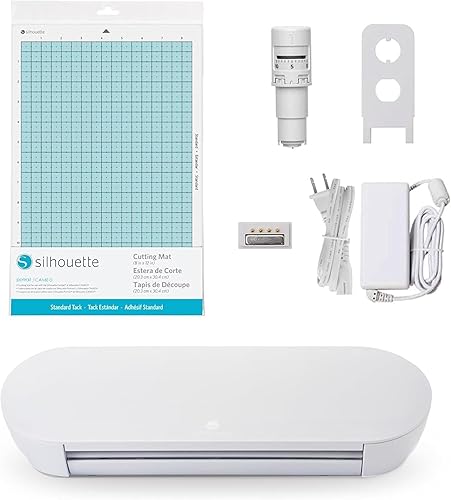
- 9 in cutting machine
- Studio software and PixScan
- Electric tool options
- Cuts and sketches
Portrait 4 offers a 9 in digital cutting format for classroom designs that need more width than a compact 4.5 in cutter. Its Studio software, PixScan and electric tool options support a different workflow from Cricut machines.
Pros
- 9 in width for smaller digital designs
- Studio software and PixScan
- Electric tool options
Cons
- Package includes the machine
- Requires learning a separate software workflow
Portrait 4 may suit smaller classroom signs, labels and student designs. Its cutting width sits between Joy 2 and Explore 5, so compare the size of the class's usual designs before choosing it.
The package includes the machine. Teachers should plan separately for the materials and tools their activities require, and decide whether it makes sense to introduce Studio software if the class already uses Design Space.
A different software workflow can add a learning step for both teacher and students. Choose Portrait 4 when its tools and software suit the classroom's design process, rather than expecting the interface to match Cricut.
Choose Portrait 4 for a 9 in digital cutting format and Studio workflow. Skip it if you want the same app used by other Cricut machines.
Which portable manual cutter suits a small classroom station?
The Sizzix Sidekick Starter Kit works for small die-cut shapes, lightweight cardstock and compatible embossing folders. Its 2.5 in opening makes it a focused tool for accents, tags and small details rather than broad signs or large card fronts.
Sizzix Sidekick Starter Kit: Best for small die-cut stations

- 2.5 in opening
- Manual die cutting and embossing
- Suction base secures to smooth surfaces
- Starter kit includes dies, folders and stamps
The Sidekick is a small manual machine for lightweight cardstock, paper and compatible dies or folders up to 2.5 in wide. Its suction base can help secure it to a smooth work surface.
Pros
- Compact, portable format
- Starter kit includes dies and folders
- Works without a computer
Cons
- Narrow opening limits project size
- Designed for a single sheet of lightweight cardstock
The machine weighs 2 lb and has a suction base that can help secure it to a smooth work surface. Its starter kit includes dies, embossing folders and stamps, allowing teachers to prepare a small paper activity without a digital setup.
The narrow opening is the key tradeoff. Check the width of the dies and paper pieces before the lesson, and keep the project small enough to pass through the machine.
The Sidekick can be useful at a small-group station or for taking a compact manual cutter between rooms. It's a poor fit when the class needs many larger shapes or a wide range of custom designs.
Choose Sidekick for a portable station with small paper details.
Does a classroom need the wider Sizzix Big Shot Plus?
The Big Shot Plus is the manual pick when classroom paper projects need a wider platform than a 6 in machine offers. Its 9 in platform and included starter materials support larger die-cut and embossing activities.
Sizzix Big Shot Plus Starter Kit: Best for wider manual projects

- 9 in platform
- Manual die cutting and embossing
- Includes dies, folder and cardstock
- Cuts and embosses materials including paper, felt, cork and balsa wood
The wider platform suits teachers who want to run manual die-cutting and embossing activities with larger paper pieces. The starter kit includes a platform, adapter, dies, embossing folder and cardstock.
Pros
- Wider platform than the 6 in Big Shot
- Includes materials and accessories
- Can cut and emboss several stated materials
Cons
- Manual operation takes a separate pass for each design
- Larger format may take more classroom storage space
The kit includes a standard platform, thin die adapter, cutting pads, 19 Thinlits dies, an embossing folder and cardstock. It can cut and emboss materials including paper, tissue, cardstock, felt, cork and balsa wood.
A wider platform may help when students are making larger paper pieces or working on projects that don't fit a smaller opening. It also needs more storage room, so measure the classroom's available shelf or worktop space before choosing it.
As with other manual machines, plan for the time each pass takes and the number of students sharing the machine. Set out the correct platform and materials before the activity, and keep unused dies and small parts organized between turns.
Choose Big Shot Plus for wider manual projects. Skip it if your class mostly makes small embellishments and storage is tight.
How should teachers choose the best Cricut for teachers and classroom use?
Choose a classroom cutting machine by project size, material, student participation and the teacher's preferred workflow. The best Cricut for teachers is often the Explore 5 when one digital machine needs to cover a varied project list.
For custom labels, stickers, apparel and repeat designs, Explore 5 offers a strong balance of width and material choice. Maker 4 makes more sense when lessons will use its extra material range and functions, while Joy 2 keeps smaller jobs and storage simple.
For paper shapes and embossing, choose a manual cutter based on the opening size and class activity. The 6 in Big Shot Starter Kit suits shared die-based paper work, Big Shot Plus offers a wider platform, Sidekick handles small shapes, and Platinum 6 fits card-focused activities.
Portrait 4 can suit teachers who prefer its 9 in format and Studio software workflow. A teacher should skip any model whose core workflow doesn't fit the classroom: a digital cutter needs a device and app, while a manual cutter depends on physical dies and time for each pass.
What should teachers prepare before a cutting lesson?
Teachers should prepare the design, material, machine setup and student roles before class begins. A short setup check can prevent a lesson from stalling because the design is too wide, the wrong material is on hand or the device isn't ready.
- Check the project size: Compare the design's widest point with the machine's cutting width or opening.
- Match the material: Confirm the machine and tools suit the planned material, then gather the needed blade, mat, die or plates.
- Prepare the digital file: For a digital cutter, open the app and confirm the classroom device and Bluetooth connection are ready.
- Set up the manual station: Lay out compatible dies, plates and paper in order, and show students how the crank activity will work.
- Assign clear roles: Decide who handles materials, operates the machine and checks finished pieces.
- Allow time for repeats: Repeated cuts or manual passes take longer when many students share one machine.
A common mistake is planning around the finished shape without considering the machine's opening or width. Another is expecting every feature to work without the compatible tools, materials or software the project needs.
For cardstock planning, read whether a Cricut can cut cardstock. The Cricut blade types guide helps explain which blade options match different cutting jobs.
Which cutting machine should teachers pick?
Pick Explore 5 for varied digital classroom projects, Maker 4 for classes that will use more materials and functions, and Joy 2 for compact labels, cards and smaller cuts. For a paper-first classroom, choose Big Shot for a 6 in manual station, Big Shot Plus for wider projects, Sidekick for small shapes or Platinum 6 for die-cut card activities.
The best Cricut for teachers depends on what students will make most often and how the class will share the machine. Compare more electronic die cutting machines for paper crafts or explore manual die cutting machine options if your lessons center on physical dies.
Our top 3 picks at a glance
-
1
-
2
-
3
Frequently asked questions
What is the best Cricut for teachers?
The Cricut Explore 5 Essential is a strong fit for teachers who want one machine for varied classroom projects. Its 12 in cutting width and support for 100+ materials cover cards, decals, apparel and stickers.
Choose Joy 2 if smaller projects and compact storage matter more.
Is a manual die cutting machine useful in a classroom?
Yes. A manual machine such as the Sizzix Big Shot can give students a direct role in passing compatible dies and paper through the machine.
Check the opening size and plan for adult guidance so the activity fits the students and materials.
Should teachers choose a Cricut or a manual cutter?
Choose a Cricut when you want to create or adjust digital designs, cut them from supported materials and repeat them. Choose a manual cutter when your class will use compatible dies for paper shapes and embossing.
The project type and classroom workflow matter more than the machine name.
What classroom projects can a Cricut make?
A Cricut can make projects such as labels, cards, decals, stickers and personalized apparel, depending on the model and material. Explore 5 works with 100+ materials, while Joy 2 works with 75+.
Check each design's size against the machine's cutting width before preparing a class activity.


